Screendrop: Screenshots, Screen Recording, and Sharing in One Native Mac App
Screendrop is a free, open-source macOS screenshot and screen recording app that combines floating previews, non-destructive annotation, video editing, and optional self-hosted sharing in one native workflow.
Screendrop is a free, open-source macOS screenshot and screen recording app that combines floating previews, non-destructive annotation, video editing, and optional self-hosted sharing in one native workflow.
macOS already includes basic screenshot and screen recording tools, which work well when all you need is a quick capture. The extra work begins afterward. A screenshot may need arrows or redaction. A recording may need click indicators, keystroke captions, and trimming before it can be shared. Moving through several apps for each step quickly becomes tedious when producing tutorials or product demonstrations.
Screendrop brings this workflow into a menu bar app. The developer describes it as a native, self-hostable alternative to CleanShot and Loom. Its current project documentation covers screenshots, annotation, recording, editing, and sharing, giving it a much broader scope than a basic replacement for the macOS screenshot utility.
Work from the floating preview
Screendrop can capture an entire display, a window, or a freely selected area. Its default screenshot shortcuts are Option + 1, Option + 2, and Option + 3, and each shortcut can be changed in Settings.
After a capture, the file is added to local History and displayed in a floating preview card near the edge of the screen. From there, you can drag it into another app, copy or save it, create a smaller version, pin it above other windows, open the annotation editor, or upload it for sharing.
The position and closing behavior of the preview can be customized. Its action buttons can also be rearranged. When several screenshots are taken in succession, the cards form a stack instead of covering more of the workspace.
Screendrop also supports configurable after-capture actions. It can automatically copy a new screenshot to the clipboard, save it to a selected folder, open the annotation editor, pin the image, or upload it. Capture and recording actions are available through Apple Shortcuts, Siri, and Spotlight as well.
Edit annotations again later
Screendrop uses a non-destructive annotation workflow. It preserves the original image and stores editable annotation data in a neighboring .screendrop sidecar file. You can reopen the image later and move, resize, or remove an annotation without taking the screenshot again.
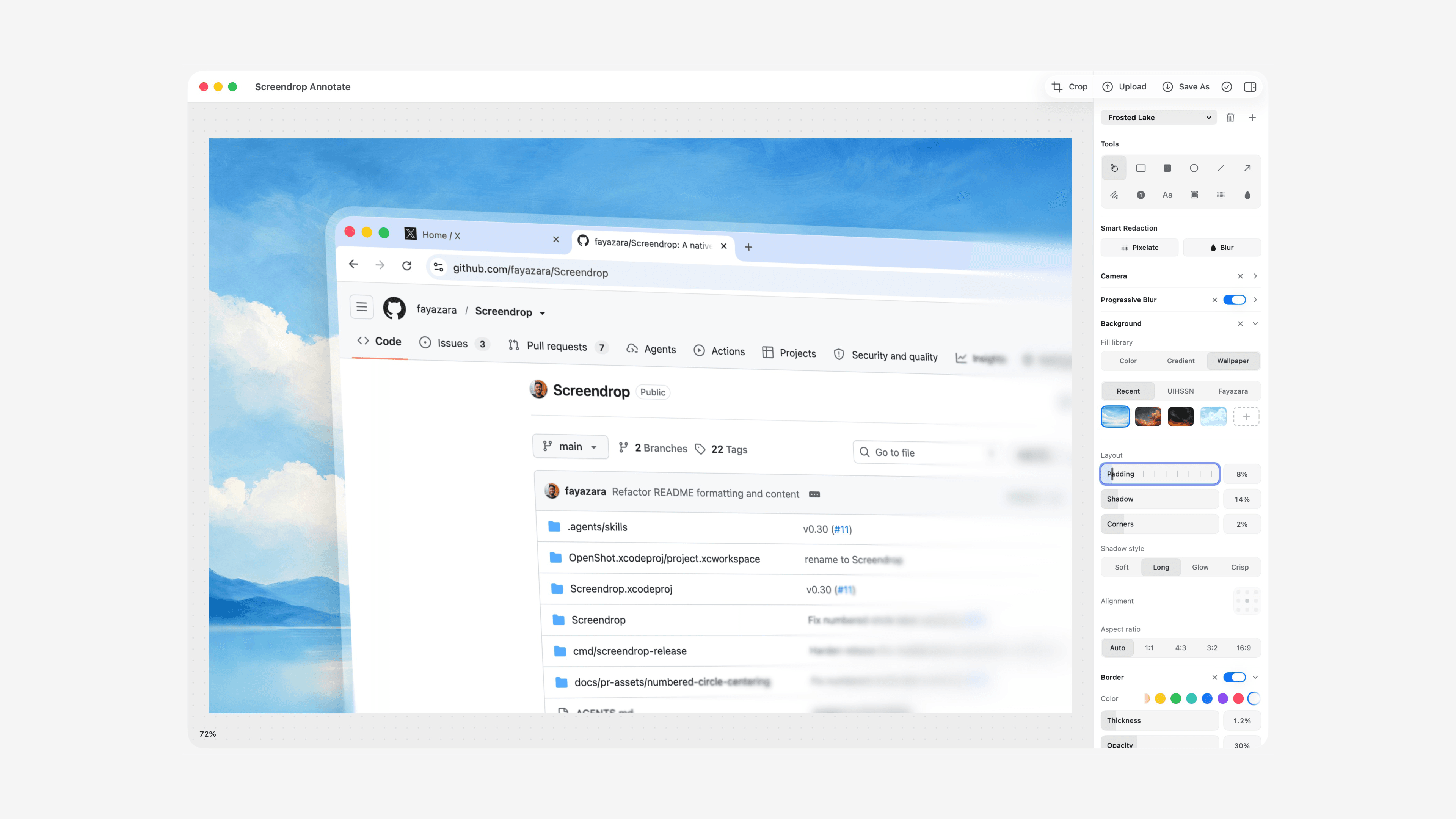
The editor includes rectangles, circles, lines, arrows, freehand drawing, numbered markers, text, cropping, blur, and pixelation. Smart Redaction can scan a screenshot for sensitive text and add editable blur or pixelation areas.
Screenshots prepared for articles or social media can be placed on solid colors, gradients, custom images, or downloadable wallpaper backgrounds. The editor also provides controls for padding, corner radius, shadows, aspect ratio, borders, and text watermarks.
Existing images can be opened from Finder with Screendrop. The app imports a copy into History and leaves the original file untouched.
Keep recording elements editable
Screen recordings can use a full display, a window, or a selected area. Camera, microphone, and system audio can be captured as separate sources. Screendrop also records cursor movement, clicks, and keystrokes so their presentation can be adjusted after recording.
The built-in Studio supports smooth zooms, clip cuts, speed changes, camera layouts, and common social-media aspect ratios. Narration can be transcribed on the device with Apple’s speech recognition. The transcript can then be used for captions or text-based video editing, where selecting words removes the corresponding section of footage.
Captions can highlight words as they are spoken. The editor can also help remove filler words and trim periods of silence from narration.
A teleprompter is included in the recording workflow. On a Mac with a notch, the script appears below the notch. Other displays use a floating panel near the menu bar. With a microphone enabled, on-device speech recognition can follow the narration and advance through the script. The teleprompter remains available as a static prompt when speech tracking is unavailable.
Host sharing through your own Cloudflare account
Screendrop does not require an account when captures remain on the Mac. Screenshots, recording projects, annotation data, and transcripts are stored locally by default.
Users who need shareable links can deploy the companion Screendrop Worker. Cloudflare Workers receives the uploads, R2 stores screenshots and recordings, and D1 holds the required metadata.
The Mac app only needs the Worker address and an upload token. It does not require direct access to R2 or S3 credentials, and the token is stored in the macOS Keychain.
Shared screenshots open in a lightweight viewer. Recording links provide a video player, captions, searchable transcripts, comments, view counts, and rich previews for messaging apps. Uploading only begins when the user selects the upload action or enables it as part of an automated after-capture workflow.
System requirements and installation
Screendrop currently requires macOS 26.4 or later. The project remains under active development, and its README warns that users may encounter rough edges and occasional breaking changes. People who depend on a highly stable production tool, or who still use an older macOS release, should keep that limitation in mind.
The app can be downloaded as a DMG from GitHub Releases or installed through Homebrew.
1brew install --cask fayazara/tap/screendrop
Screendrop uses Sparkle for application updates. Video conversion and compression features require FFmpeg, which can be installed separately when needed.
1brew install ffmpeg
Depending on the features you use, macOS may request Screen and System Audio Recording, Camera, Microphone, and Input Monitoring permissions. If macOS warns that the developer cannot be verified on first launch, right-click the app and choose Open, or allow it under Privacy & Security in System Settings.
Screendrop suits creators who want to capture, annotate, and edit recordings in one place. It also gives developers and small teams the option to control their own sharing service. The project is published under CC0 1.0 Universal, with source code for both the Mac app and its companion Worker available on GitHub.
Share Article
About the author

AppPie Editorial
Edit Co-creator Account.