macUSB: Create Bootable macOS, Windows, and Linux USB Drives on Mac
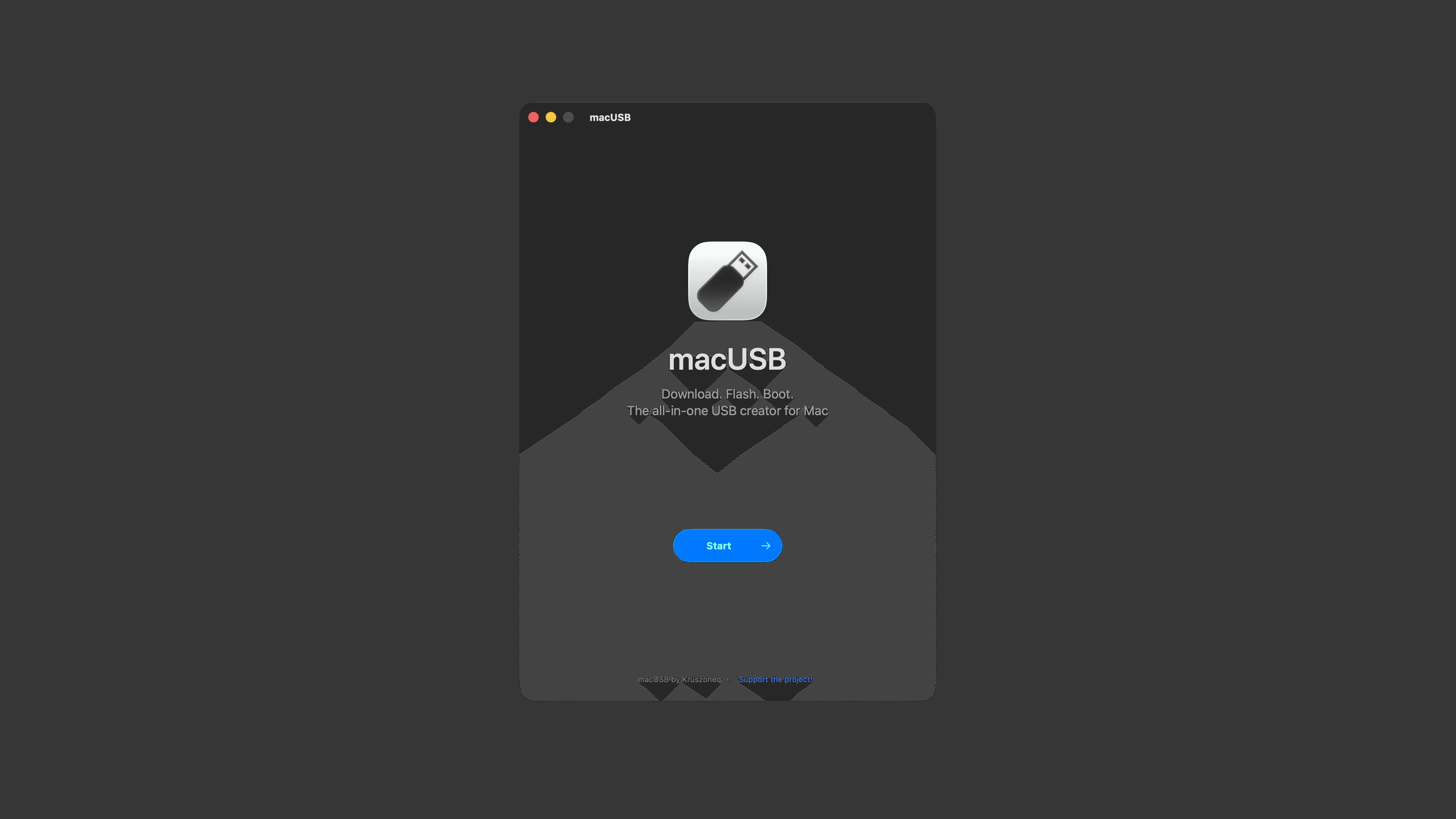
macUSB is a free and open-source bootable USB creation tool for macOS. It brings system downloads, image detection, drive preparation, and flashing together in one native Mac app.
Whether you need to reinstall macOS, prepare installation media for an older Mac, or create a Windows or Linux boot drive, the process often involves Disk Utility, Terminal commands, and several different system image formats.
macUSB brings these steps into a clear, guided workflow: choose a system image, confirm the target drive, and let the app prepare and write the bootable media.
More Than an Image-Flashing Tool
macUSB supports both Apple Silicon and Intel Macs. It can work with local .dmg, .iso, .cdr, and .app files, or browse and download macOS installers available from Apple’s servers directly within the app.
Its main features include:
- Downloading official macOS installers from Apple’s servers
- Automatically selecting an appropriate flashing method for each image format
- Checking the target drive’s partition layout and file system, then automatically preparing the media and performing necessary conversions where supported
- Calculating SHA-256 checksums for recognized
.iso,.cdr, and.dmgimages - Detecting the release, edition, and processor architecture of Windows and Linux images
- Handling compatibility issues that can occur when creating older macOS installers on Apple Silicon Macs
- Providing a multilingual interface, including Simplified Chinese
The entire process is presented in stages, from choosing a source to completing the bootable drive. It is easier to follow than manually combining Disk Utility, dd, and createinstallmedia, while also making potential problems easier to identify.
From the Latest macOS to Classic Mac OS X
macUSB can recognize and create installation media for systems ranging from macOS Tahoe and Sequoia all the way back to Mac OS X Tiger.
This is particularly useful for anyone maintaining older Macs. When creating installation media for macOS Catalina or earlier on an Apple Silicon Mac, legacy installers may fail because of certificate validation errors or differences in system tools. macUSB automatically handles some of these compatibility requirements during the creation process.
However, the older the operating system, the more likely the result will depend on the image source, Mac model, and boot firmware. Sierra is limited to a specific release, while some Mavericks and Tiger images have additional restrictions. Before preparing installation media for an older system, check the project’s complete compatibility notes.
Windows and Linux Support
macUSB can also create bootable drives from Windows and Linux .iso images.
For Windows images, the app can identify the operating system release, edition, and architecture. It also provides optional setup automation for Windows 10 and Windows 11, including the ability to:
- Bypass Windows 11 hardware requirement checks
- Skip the mandatory Microsoft Account requirement
- Configure selected first-run settings
- Prevent automatic BitLocker encryption
Bootable Windows media creation is currently supported for Windows 8 and newer, as well as Windows Server 2012 and newer. The resulting installation media is UEFI-only.
If an image contains an install.wim file larger than FAT32’s 4 GB per-file limit, macUSB can use wimlib to split it into smaller files automatically.
For Linux images, the app can detect the distribution, version, and architecture. The project has been tested with popular distributions including Ubuntu, Debian, Fedora, Arch Linux, Linux Mint, NixOS, and openSUSE. A separate option is also available for writing raw .img files.
Native, Free, and Open Source
macUSB is built with Swift as a native macOS application. It does not rely on Electron or a web-based wrapper.
The project is released under the MIT License, and all of its features are available for free. It can replace several separate utilities and Terminal workflows for users who regularly maintain Macs, test operating system images, or occasionally prepare installation media for other computers.
Installing macUSB
macUSB requires:
- An Apple Silicon or Intel Mac
- macOS 14.6 Sonoma or newer
- At least 16 GB of USB storage for most macOS installers
- At least 32 GB for macOS Sequoia and newer
- At least 8 GB for Windows or Linux images, depending on the image size
- USB 3.0 or faster storage for better performance
You can download macUSB from GitHub Releases or install it with Homebrew:
1brew install --cask macusb
If a Windows image requires a large install.wim file to be split, you will also need to install wimlib:
1brew install wimlib
Before using the app for the first time, allow macUSB to run in the background and grant it Full Disk Access in System Settings. Without these permissions, its helper process and disk operations may not work correctly.
Creating bootable media erases all data on the selected drive. Confirm that you have selected the correct target and back up any important files before continuing.
Conclusion
macUSB is more than an app with a simple “flash image” button. It combines system downloads, image analysis, drive preparation, compatibility handling, and progress reporting into one guided workflow.
If you want to create bootable macOS, Windows, or Linux media on a Mac without repeatedly looking up commands or managing different image formats, macUSB is a useful free and open-source tool worth keeping around.
Share Article
About the author

AppPie Editorial
Edit Co-creator Account.