Apple OS 27 Is Here: What to Know Before You Update
A guide to Apple OS 27, covering supported devices, backups, storage requirements, why encrypted backups matter, and the new features worth exploring.
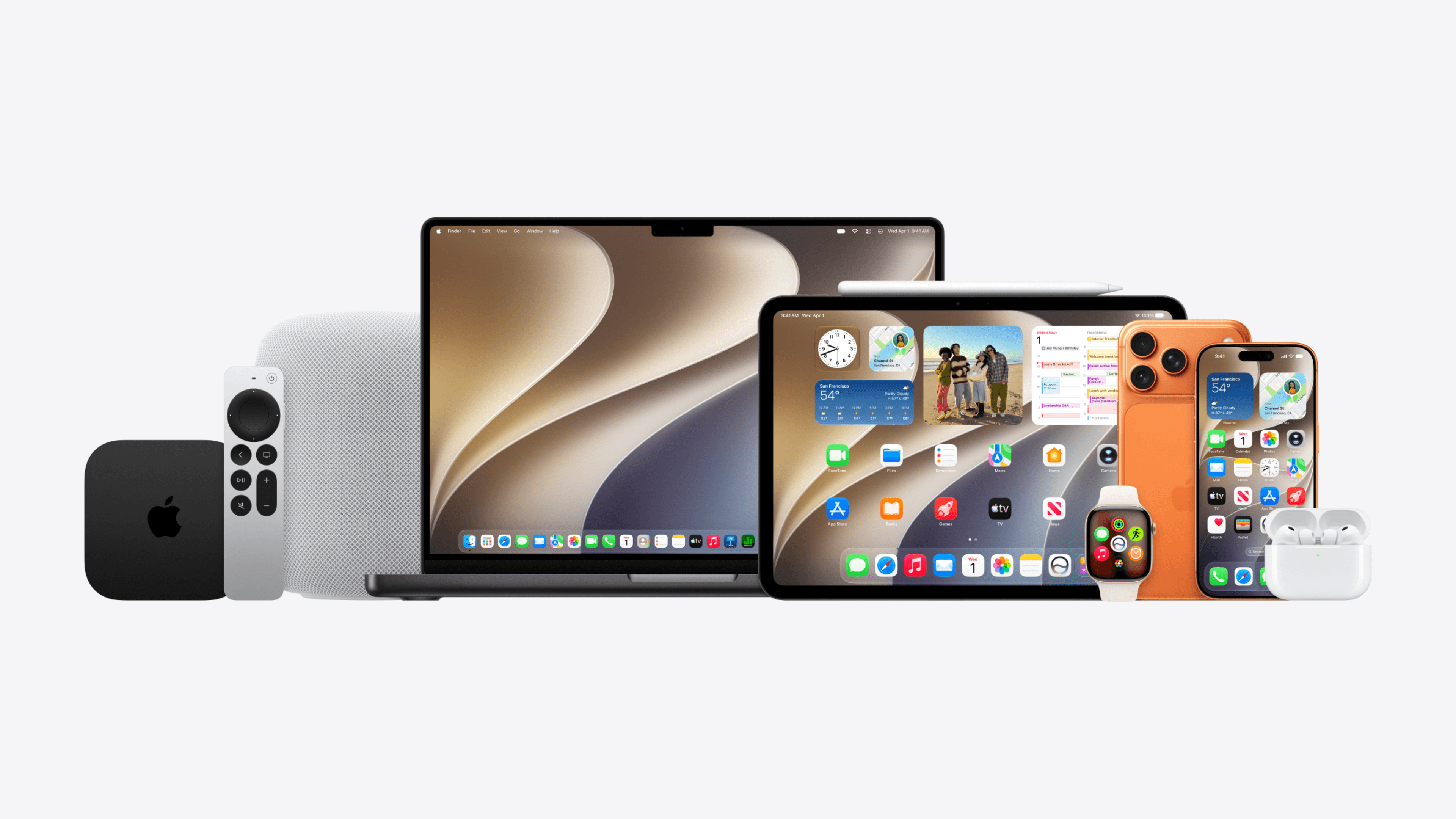
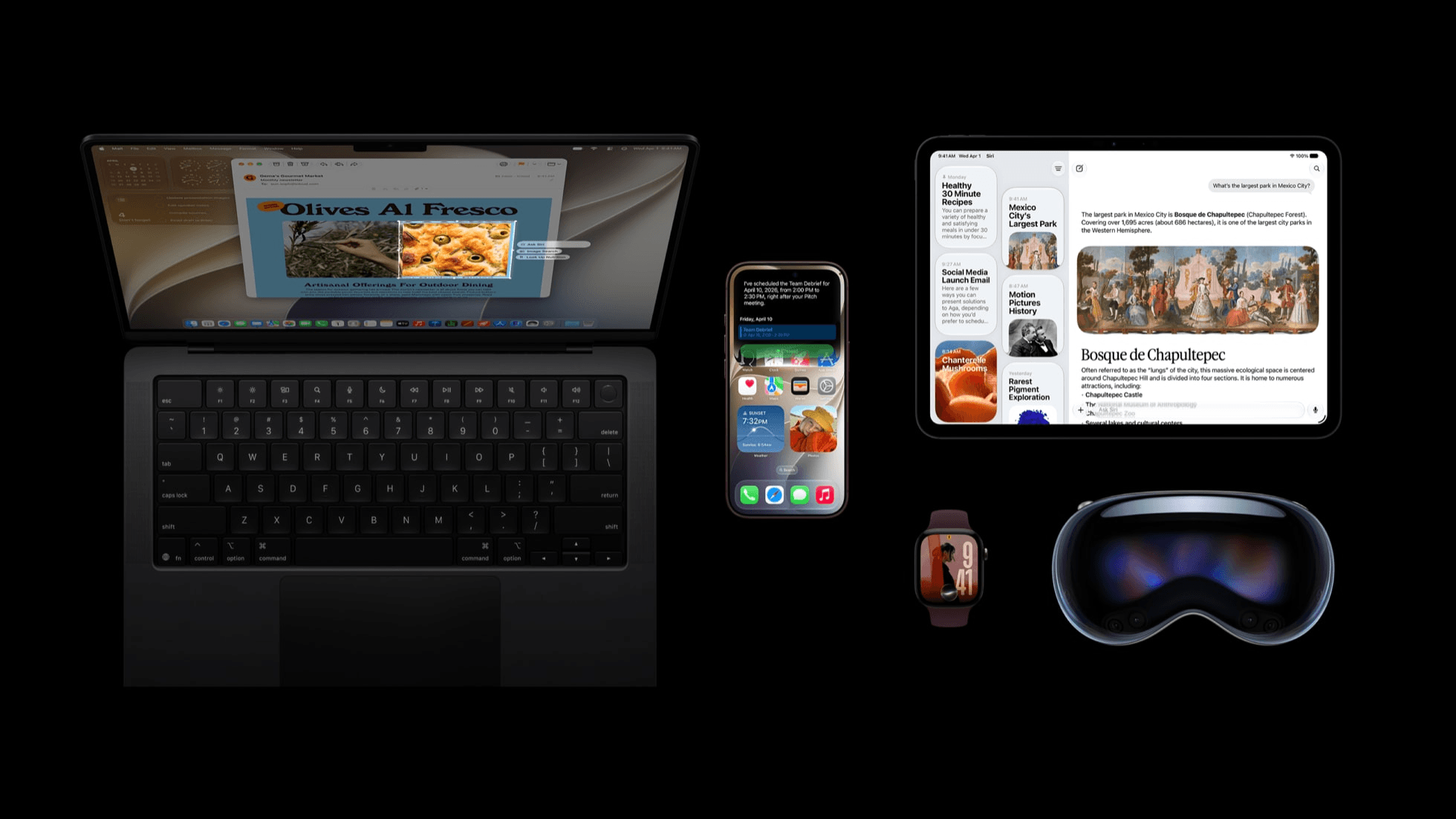
Apple has started rolling out iOS 27, iPadOS 27, macOS 27, watchOS 27, visionOS 27, and tvOS 27. The updates introduce Siri AI, new child safety features, and improvements to everyday use. Drawing on Apple’s release announcement and platform guides, we’ve put together the supported devices, steps to prepare, and features worth exploring.
Before installing, take a moment to back up your device. If you’re backing up an iPhone or iPad to a Mac or PC, remember to enable Encrypt local backup.
Which Devices Support OS 27?
iPhone
iOS 27 supports the following models.
- iPhone 11 through iPhone 17 families, including the corresponding mini, Plus, Pro, and Pro Max models
- iPhone 16e and iPhone 17e
- iPhone Air
- iPhone SE, second and third generations
- iPhone 18 Pro, iPhone 18 Pro Max, and iPhone Duo
The iPhone 11 family and second-generation iPhone SE can still update. Apple Intelligence has separate hardware requirements, so older devices won’t receive every new feature.
iPad
| Product | Supported models |
|---|---|
| iPad Pro | 11-inch, second generation and later; 12.9-inch, fourth generation and later; all models with M-series chips |
| iPad Air | Fourth generation and later, including models with M-series chips |
| iPad | Ninth generation, tenth generation, and iPad (A16) |
| iPad mini | Sixth generation and iPad mini (A17 Pro) |
If you’re unsure which model you own, open Settings > General > About and check the model name. iPadOS 27 compatibility
Mac
macOS 27 Golden Gate no longer supports Intel Macs. The following models are compatible.
| Product | Supported models |
|---|---|
| MacBook Neo | 2026 |
| MacBook Air and MacBook Pro | Models with Apple silicon, 2020 and later |
| Mac mini | Models with Apple silicon, 2020 and later |
| iMac | Models with Apple silicon, 2021 and later |
| Mac Studio | 2022 and later |
| Mac Pro | 2023 model with Apple silicon |
Some Macs released in 2020 came in both Intel and Apple silicon versions. Check About This Mac in the Apple menu rather than relying on the year you bought it. macOS 27 compatibility
Apple Watch
watchOS 27 supports these models.
- Apple Watch Series 9, Series 10, Series 11, and Series 12
- Apple Watch Ultra 2, Ultra 3, and Ultra 4
- Apple Watch SE 3
The paired iPhone must run iOS 27 and be an iPhone 11 or later, or an iPhone SE, second generation or later. Update your iPhone before updating your watch. watchOS 27 compatibility
Apple Vision Pro
Apple Vision Pro models with M2 or M5 support visionOS 27. Some features have additional hardware requirements. Apple’s visionOS 27 overview
Back Up Before Updating
Even if automatic backups are enabled, we recommend making a fresh backup before a major update and checking when it last completed successfully.
For iPhone and iPad, our preferred approach is to connect to a Mac or PC, create an encrypted backup, and then install the update through the computer. This keeps backup verification and installation in one place.
Why Enable Encrypted Backups?
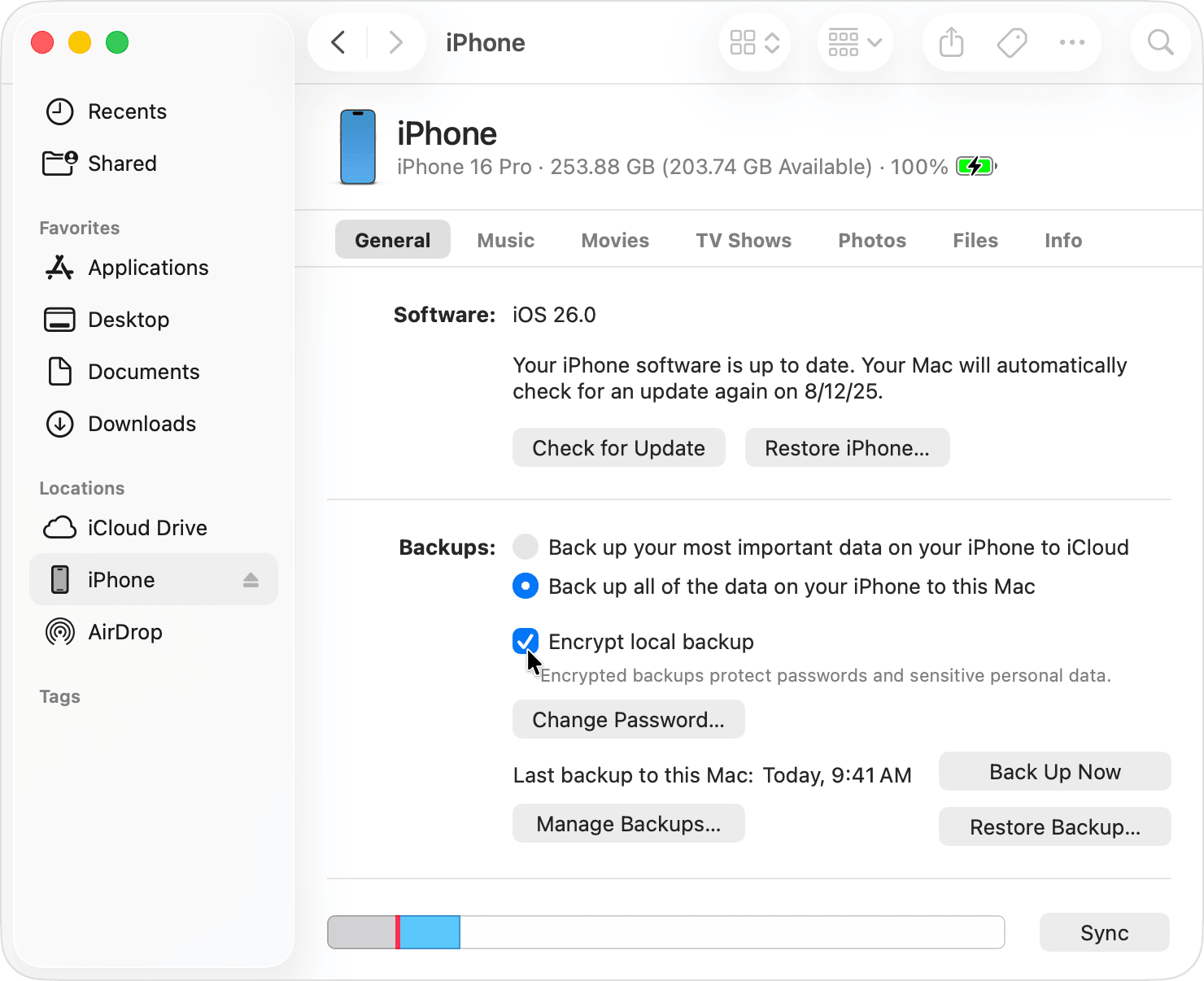
Enable Encrypt local backup to protect the backup with a password and include information that an unencrypted backup leaves out, such as saved passwords, Wi-Fi settings, Health data, and call history. These can then be restored when recovering your device or moving to a new one. Keep the backup password somewhere safe; without it, you won’t be able to use that encrypted backup. About encrypted backups
How to Create an Encrypted Backup
- Connect your iPhone or iPad to your computer with a cable. Unlock it and trust the computer when prompted.
- On a Mac, open Finder. On Windows, open the Apple Devices app. Older systems or PCs without Apple Devices may use iTunes, as described in Apple’s instructions.
- Select your device. Under General or Summary, choose to back up its data to this computer.
- Select Encrypt local backup, set a password, and start the backup.
- When it finishes, open Manage Backups. Check the date and look for the lock icon beside the device name.
Save the password in a password manager or another secure location. Resetting the backup password later will not unlock an older encrypted backup. Set up and check encrypted backups
A computer backup does not duplicate everything already synced to iCloud, such as iCloud Photos. Check that important photos and files have finished syncing, and keep a separate copy where needed. What iPhone and iPad backups include
Use iCloud If You Don’t Have a Computer
Open Settings > [your name] > iCloud > iCloud Backup, then tap Back Up Now. Stay connected to the network until the backup finishes.
If iCloud reports insufficient storage, resolve that first. Having the backup switch enabled does not necessarily mean a recent backup has completed. Back up your iPhone
For a Mac, make a fresh Time Machine backup before installing the new system. Back up your Mac with Time Machine
Leave Enough Free Storage
On an iPhone or iPad, open Settings > General > iPhone Storage or iPad Storage to check available space.
If space is tight, start with downloaded videos, files you no longer need, or apps you rarely use. Offload App keeps its documents and data, while deleting an app may remove its data too. Read the prompt before proceeding. Manage device storage
Storage requirements vary by device, current system version, and update method. Follow the update screen’s requirements and leave some additional room where possible. Your computer also needs space for the backup and downloaded update.
Updating through a computer still requires free space on the iPhone or iPad. Keep power and network connections stable throughout the process, and allow time for installation even if the progress bar moves slowly. If your device won’t update
How We Recommend Updating
First Choice: Update iPhone or iPad Through a Mac or PC
Once the backup is complete, leave the device connected.
- Mac: Select the device in the Finder sidebar, open General, and click Check for Update. Follow the prompts to download and install.
- Windows: Select the device in Apple Devices, open General, and check for updates.
For a normal upgrade, choose Update. The Restore option erases the device and reinstalls its software, so it is not part of this routine update process. Keep the cable connected until installation finishes. Update using a Mac · Update using Windows
We prefer this method because it makes backing up, checking the backup, and installing the update a continuous process. It does not guarantee better battery life or performance than an over-the-air update.
Second Choice: Update Over the Air
If you don’t have a computer, complete an iCloud backup, then open Settings > General > Software Update and follow the instructions.
A Mac itself updates through System Settings > General > Software Update. The recommendation to connect to a computer above applies primarily to iPhone and iPad. Apple software update methods
New Features Worth Exploring
Siri AI Is Rolling Out With Language and Regional Limits
Siri AI supports ongoing conversations, can find information across personal content such as photos and email, and can understand onscreen content and perform more actions in apps. A dedicated Siri app lets you continue conversations across devices.
Although the operating systems have been released, Siri AI is still rolling out as a beta in English. Apple plans to add French, Japanese, Korean, Portuguese, and Spanish in October. Siri AI and the other new Apple Intelligence features are not currently available in China mainland, and some cloud-based AI features have daily usage limits. Availability details in Apple’s announcement
New Intelligent Tools in Photos and Safari
Supported Apple Intelligence devices gain photo editing tools for Spatial Reframing, extending an image beyond its original edges, and enhanced Clean Up.
Safari can automatically organize tabs by topic and monitor webpages for changes, such as product restocks or price drops. Device, language, and regional requirements apply. iOS 27 features
More Control Over Liquid Glass
iOS 27 refines Liquid Glass contrast and readability. A new slider lets you adjust its appearance from clearer to more tinted, while app icons receive sharper details. iOS 27 design improvements
macOS 27 also updates toolbars, sidebars, and window shapes. External display users can explore improved ultrawide support and changes that preserve display arrangements when reconnecting. macOS 27 features
Better File Handling and Multitasking on iPad
iPadOS 27 improves browsing and transferring files on external drives. It also adds refinements such as an always-visible menu bar option and resizable iPhone app windows.
Messages improves synchronization of unread counts and notifications, helping your iPad catch up when you return after using another device. iPadOS 27 features
More Flexible Parental Controls
New child safety settings let parents choose which apps their children can use. Children can also be required to request approval before visiting a new website in Safari.
The redesigned Screen Time experience supports daily allowances across app categories and schedules that control which apps are available at different times. Communication Safety expands protection to include graphic or violent images and videos. iPadOS 27 child safety features
Updates for Apple Watch, Shared Albums, and Apple TV
watchOS 27 adds more contextual Smart Stack suggestions and combines device, people, and item tracking into one Find My app. It also improves distance measurement for indoor runs and walks. watchOS 27 features
iCloud Shared Albums gains full-resolution photo and video sharing and makes it easier for Android and Windows users to participate. Apple TV adds high-resolution lossless audio support for Apple Music, an updated Podcasts app, and more text-size options. Apple’s release announcement
If a particular feature is your reason for updating, check its device, language, and regional requirements first. Being able to install OS 27 does not mean every feature shown on Apple’s website will be available on your device.
Share Article
About the author

AppPie Editorial
Edit Co-creator Account.